How To Block A Specific App From Being Downloaded

There’s something genuinely satisfying about taking control of your own digital space. Whether you’re a parent trying to shield a curious kid from game-add-ons, a manager ensu...
There’s something genuinely satisfying about taking control of your own digital space. Whether you’re a parent trying to shield a curious kid from game-add-ons, a manager ensuring a work device stays productive, or just someone who wants to avoid a particular time-sucking app, learning how to block a specific app from being downloaded is a practical superpower. It’s not about being restrictive for the sake of it—it’s about creating intentional boundaries. The best part? Most of these tricks take less than two minutes to set up, yet they save you from endless “just one more download” debates.
The main purpose here is simple: prevent installation before it even starts. For parents, this means blocking that hyper-addictive battle royale game before a child can plead for it. For teams, it stops employees from sideloading unvetted tools that compromise security. Even for yourself, blocking a distracting social media app on your phone can be a kind, preemptive favor to your future focus. You’re not fighting temptation; you’re removing its source.
Common variations of this idea show up everywhere. On iPhone and iPad, you can use Screen Time to restrict app store purchases entirely, or specifically block a single app by limiting its content rating. On Android, you can use Google’s Family Link to approve or deny every download. For Windows or macOS, you can install third-party apps or use built-in parental controls to blacklist specific software. Even on a shared home router, you can block the domains of certain app stores—though that’s a bit of a sledgehammer approach.
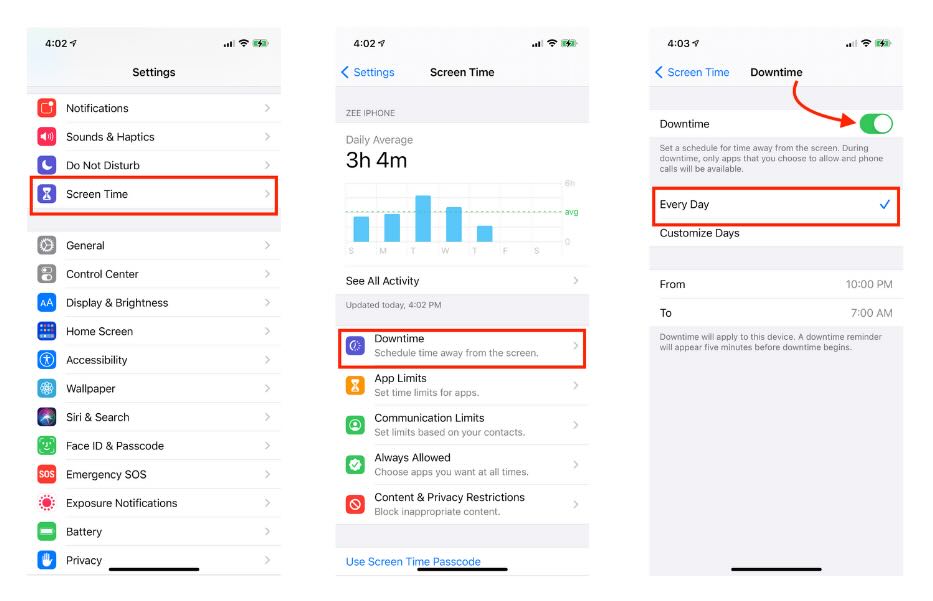
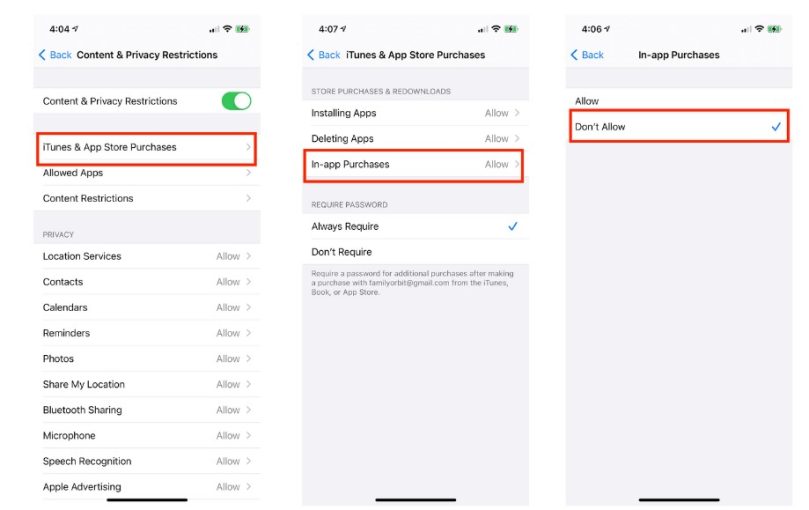
Ready to take action? Start with the easiest method: native settings. On an iPhone, go to Settings > Screen Time > Content & Privacy Restrictions > iTunes & App Store Purchases. Turn “Installing Apps” to Don’t Allow, or set an age rating cutoff that excludes the app. On Android, open the Google Play Store, tap your profile, then Settings > Parental Controls. Turn it on, create a PIN, and set the maximum content rating to block mature apps. This instantly blocks any download that exceeds that rating.
If you need zero-tolerance blocking, consider device management. For a managed work phone or tablet, use an MDM (Mobile Device Management) profile that whitelists only approved apps. For a family device, Family Link lets you approve or deny each download request in real time—perfect for teaching older kids about responsible app choices. On a PC, tools like Cold Turkey or Net Nanny can specifically block installation of unwanted software, even blocking the installer if it’s downloaded.
 Learn How to Restrict App Downloads and Block the App Store on iPhone
A pro tip: combine blocking with a conversation. The most effective blocks are the ones that aren’t a secret. If you’re blocking an app for a child, explain why—“This app is designed to keep you watching, and I want you to have free time for other things.” For yourself, write a note in your phone’s reminder: “I blocked X because I value my time more.” This turns a technical restriction into a mindful choice, making the block stick longer.
In the end, blocking a download is less about saying “no” and more about saying “yes” to what matters. It’s a small, joyful hack that gives you back control in a world of endless taps. Try one method today, and see how freeing it feels to simply make a distraction impossible to install.