How To Use Freeform Windows In Android 14

Have you ever wished you could peek at a message without abandoning a full-screen game, or jot down a quick note while watching a video? Android 14’s Freeform Windows feature...

Have you ever wished you could peek at a message without abandoning a full-screen game, or jot down a quick note while watching a video? Android 14’s Freeform Windows feature turns this wish into reality, offering a genuinely liberating way to multitask. Unlike standard split-screen modes, freeform windows let you resize and reposition app windows just like you would on a desktop computer. This flexibility is a game-changer for anyone who craves control over their screen real estate.
The key purpose of freeform windows is to eliminate context switching. Instead of constantly toggling between apps, you can keep a calculator floating over your spreadsheet, or have a messaging app open in a small, draggable corner while you browse the web. For everyday life, this means less friction and more flow. Imagine planning a trip: you can have Google Maps active, a notes app for addresses, and your email client for confirmations—all visible on one screen without overlapping awkwardly.
The benefits extend beyond productivity. For creative types, freeform windows allow you to drag and drop images from a gallery directly into a draft email or a photo editor. Need to copy a code snippet from a website into a programming app? You can position the browser window right next to your coding environment, minimizing errors. This seamless interaction between apps turns your Android tablet or phone into a miniature workstation.
However, it’s important to know that not all apps support freeform windows out of the box. The feature is most reliable on large-screen devices like tablets, but it also works on select phones with developer options enabled. To confirm compatibility, go to Settings > System > Developer Options and look for "Enable freeform windows." If the option isn’t visible, you may need to toggle "Force activities to be resizable."
Once enabled, activating a freeform window is simple. Open your recent apps overview, tap an app’s icon, and select “Freeform.” You can then pinch to resize or drag the window by its title bar. A practical scenario: while attending a video call, you can shrink the call window into a small bubble and continue taking notes in full-screen mode, without ever leaving the meeting.
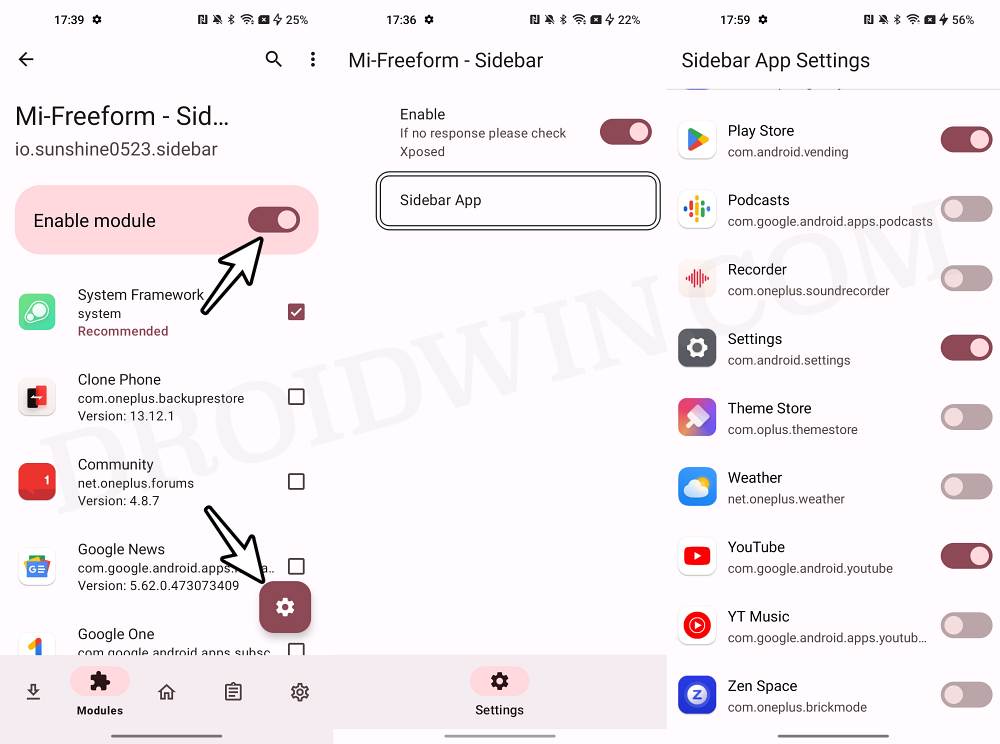 How to Enable Freeform Window on any Android Device - DroidWin
For an even smoother experience, consider these tips: first, use a stylus or mouse on a tablet—the precision makes resizing and dragging effortless. Second, remember that freeform windows remember their positions for certain apps, so you can close and reopen them without reconfiguring. Lastly, if you find windows get lost behind others, tap the “Overview” button to bring them all forward instantly.
In a world where our devices are expected to do more, Android 14’s freeform windows offer a sophisticated escape from rigid app-by-app browsing. By embracing this feature, you transform your screen from a simple portal into a dynamic, multi-dimensional workspace. It’s a small change that delivers a big payoff in everyday efficiency and enjoyment.

