Install Apk On Firestick
One of the greatest joys of owning an Amazon Firestick is the ability to transform your ordinary television into a versatile smart hub. While the device comes pre-loaded with...
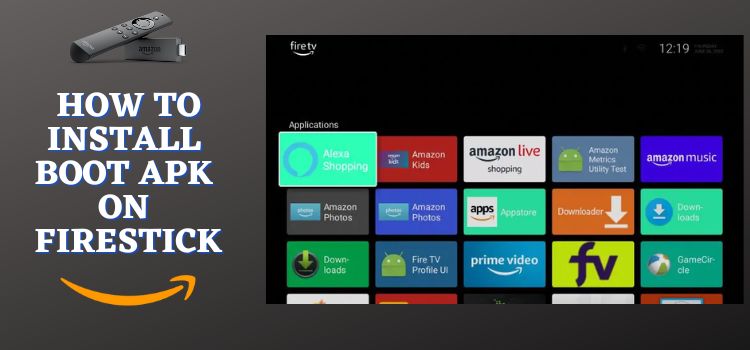
One of the greatest joys of owning an Amazon Firestick is the ability to transform your ordinary television into a versatile smart hub. While the device comes pre-loaded with popular streaming services, its true power lies in the freedom to install third-party applications, or APKs. This process allows you to unlock a world of content that is not available in the official Amazon Appstore, from specialized media players to niche utility tools, making your viewing experience uniquely yours.
The key purpose of sideloading an APK is to bypass the restrictions of the official app ecosystem. For everyday life, this means you can access apps for live sports, international news, or even retro gaming emulators that would otherwise be unavailable. Imagine arriving home after a long day and being able to stream a rare documentary from a regional broadcaster—without the hassle of connecting a laptop. This flexibility turns your Firestick from a simple streaming stick into a comprehensive entertainment center.
A common scenario is when a user wants to watch a specific channel that only offers a dedicated app outside the Amazon store. By sideloading the APK, they can enjoy that content on the big screen instead of a phone. For example, a family might install a public television app from another country to access educational shows for their children. This not only saves money on cable subscriptions but also expands your media library without needing additional hardware.
To get started safely, the first step is to enable "Apps from Unknown Sources" in the Firestick’s Developer Options. This setting is found under Settings > My Fire TV > Developer Options. Without this, the system will block any sideloaded application. Always ensure you download APK files from trusted sources, such as the official website of the app developer, to avoid malware or security risks.
Next, you will need a file downloader app—such as the aptly named "Downloader"—which is available in the Amazon Appstore. This tool allows you to enter a URL to fetch the APK directly onto your Firestick. A useful tip is to use a short URL shortener service to avoid typing long web addresses using the remote’s on-screen keyboard. Once downloaded, simply open the file from the Downloader app’s interface, and the installation will begin automatically.
![How to Install APKs on FireStick From Mobile [Android/iPhone]](https://firestickhacks.com/wp-content/uploads/2025/04/Install-APKs-on-FireStick-From-Mobile-27.webp) How to Install APKs on FireStick From Mobile [Android/iPhone]
How to Install APKs on FireStick From Mobile [Android/iPhone]
For those who prefer a more hands-off approach, consider using an app like "Apps2Fire" on your smartphone or computer. This method lets you install APKs over your local Wi-Fi network. You simply enable ADB Debugging on the Firestick (found in the same Developer Options menu), then use the app on your phone to push the APK directly. This is particularly effective for installing multiple apps in one session without navigating the Firestick’s interface repeatedly.
As a final tip, always keep your sideloaded apps updated manually, as they won’t auto-update through the Amazon store. Check for newer versions of the APK on the developer’s site every few months. By following these simple steps, you can enjoy a richer, more personalized streaming experience—turning your Firestick into a platform that truly adapts to your daily life and preferences.