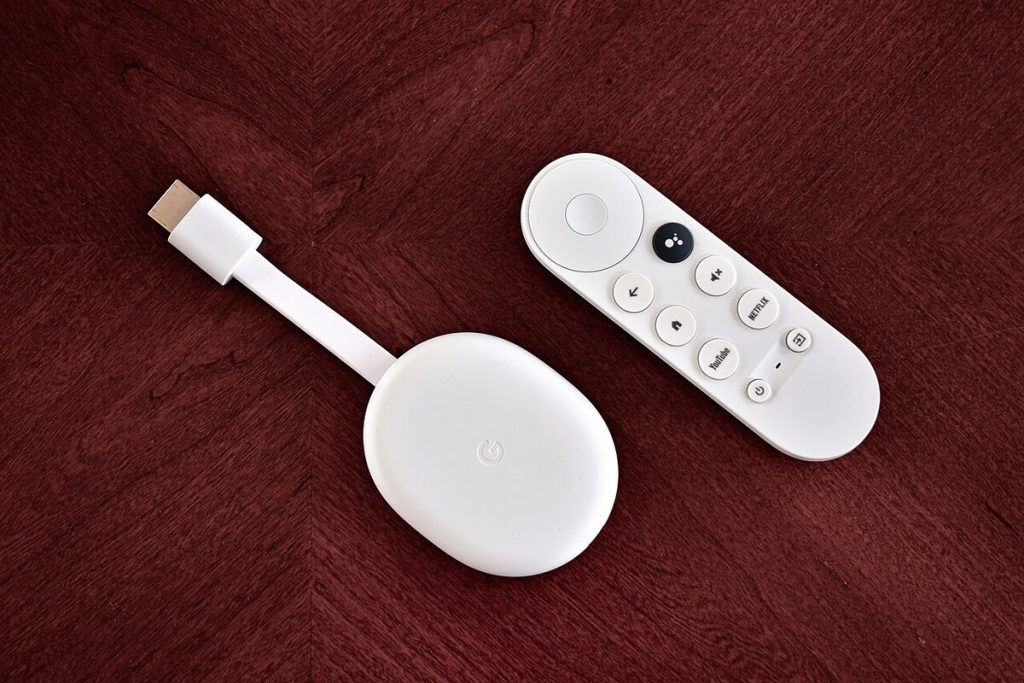
To cast from your computer to a TV with Chromecast, open Google Chrome on your PC, click the three-dot menu, choose Cast, pick your Chromecast device, and then select whether to share a tab, your whole screen or a file. The word tietokone is Finnish for computer, so if you searched for “chromecast tietokone”, this guide gives the same step-by-step answer in plain English for Windows, Mac and Chromebook.
Key takeaways
- Your computer and Chromecast must be on the same Wi-Fi or local network.
- Chrome has casting built in: use the menu, then Cast, then choose your device.
- Casting a single tab gives the best quality; casting the whole desktop is better for presentations.
- Most problems are fixed by restarting devices, updating Chrome or checking that both are on the same network.
What you need before you start
- A Chromecast, or a TV with Chromecast built in.
- A computer with the Google Chrome browser. Microsoft Edge also offers a cast option.
- Both devices on the same Wi-Fi or local network.
- The Chromecast already set up with the Google Home app on a phone or tablet.
- The TV switched on and set to the correct HDMI input.
Chromecast is Google’s streaming device line. You can read more about the product family on Wikipedia, and Google’s own help pages are at support.google.com/chromecast.
How to cast from a PC to your TV with Chromecast step by step
- Turn on the TV and check that the Chromecast is powered and showing its home screen or ambient display.
- Connect your computer to the same Wi-Fi network as the Chromecast.
- Open Google Chrome and update it if an update is waiting.
- Click the three-dot menu in the top right corner of Chrome.
- Choose Cast. In newer versions it may sit under Save, share and cast.
- Pick your Chromecast from the list of available devices.
- Open the Sources drop-down and choose what to share: the current tab, your whole screen, or a file.
- To stop, click the cast icon in the toolbar and select the device again, or choose Stop casting.
Cast a tab, a screen or a file
| Option | Best for | Notes |
|---|---|---|
| Cast tab | Videos, photos, websites | Smoothest quality and sound goes to the TV |
| Cast desktop | Presentations, apps, anything off-browser | Can lag a little; choose whether to share audio |
| Cast file | Local video or music files | Chrome plays the file and sends it to the TV |
Windows, Mac and Chromebook differences
Windows
The steps above work as written in Chrome. In Microsoft Edge, open the three-dot menu, choose More tools, then Cast media to device. Note that Chromecast does not use Windows’ built-in wireless display feature, which relies on a different standard called Miracast.
Mac
Chrome behaves the same way on macOS. Casting your whole screen with sound may need extra permission under Screen Recording in System Settings, so allow it for Chrome if you are prompted. Apple’s AirPlay is a separate system and does not cast to Chromecast.
Chromebook
Casting is built in. Open the status area, select Cast, and pick the device. You can also use the Chrome menu as above.
Tips for better quality
- Cast a tab instead of the whole screen when watching video.
- Move the router closer, or use a 5 GHz connection if your router supports it.
- Close heavy programs that compete for processing power.
- Use a wired connection for the computer if possible, which frees Wi-Fi capacity.
- Turn on full-screen mode on the video before casting a tab.
If you often stream media files from other players, our guide to using VLC to cast video to a TV with Chromecast or DLNA shows another route.
Troubleshooting: when the Chromecast does not appear
- Check the network. The computer and Chromecast must be on the same network. Guest networks and some office or school networks block device discovery.
- Restart everything. Unplug the Chromecast for a minute, restart the computer, and reboot the router if needed.
- Update Chrome. Go to the three-dot menu, Help, About Google Chrome, and let it update.
- Turn off VPNs. A VPN can place your computer on a different network.
- Allow local network access. Firewalls and security software can block casting, so check their settings.
- Check Chromecast in the Google Home app. Make sure it is online and that its name matches what you expect.
Audio or lag problems
If the picture lags behind the sound, try casting a tab, lower the video quality slightly, or close other streaming devices on the network. If there is no sound when casting the desktop, enable the share-audio option when selecting the source, and check the TV volume and mute state.
Safety and privacy notes
- Casting a whole desktop shows everything, including notifications and private messages. Turn on Do Not Disturb before presentations.
- Only cast to devices you recognise, especially on shared networks.
- Keep your Chromecast and Chrome updated for security fixes.
- Do not enter passwords while casting your full screen in a shared room.
Other ways to get your computer on the TV
Casting is convenient, but it is not the only option. If it does not suit your setup, consider these alternatives.
| Method | Pros | Cons |
|---|---|---|
| HDMI cable | Very reliable, no Wi-Fi needed | Cable length limits placement |
| Cast from Chrome | Wireless, quick to start | Depends on Wi-Fi quality |
| Cast from a streaming app | Best quality, computer can sleep | Only works inside supported apps |
| Miracast or similar | Built into some TVs and Windows | Not supported by Chromecast |
For long films, casting from the streaming service’s own cast button is usually better than mirroring the browser. The TV streams the video directly from the internet, so your computer is only a remote control. That means better quality, less battery use and no problems if you close the laptop lid.
When a cable is the smarter choice
For gaming, video calls with screen sharing or anything where timing matters, a wired HDMI connection avoids delay. It is also the simplest option if you are in a hotel or on a network that blocks casting. Most laptops have an HDMI port or can use a small adapter.
Frequently asked questions
Do I need the internet to cast from a computer?
You need a local network connecting both devices. Some content, such as streaming sites, also needs internet access. Casting a local file mainly relies on your home network.
Can I cast without Chrome?
Yes. Microsoft Edge has a cast option, and many apps such as YouTube and Netflix include their own cast button.
Why is the quality worse when I cast my desktop?
Desktop casting has to capture and compress everything on screen, which takes more processing power and bandwidth than casting a tab.
Does Chromecast work with a Mac?
Yes, Chrome on macOS has the same Cast feature. You may need to grant screen recording permission.
What does tietokone mean?
It is Finnish for computer, so a search for Chromecast and tietokone simply means casting from a computer.
Conclusion
Casting from a computer takes less than a minute once your devices share a network: open Chrome, click Cast, choose your Chromecast and pick a tab, screen or file. If it does not work first time, restart the devices and check the network, and you will usually be up and running quickly.
Key takeaways about chromecast tietokone
Here is a short summary of chromecast tietokone so you can find the main points quickly.
- To cast from your computer to a TV with Chromecast, open Google Chrome on your PC, click the three-dot menu, choose Cast, pick your Chromecast device, and then select whether to share a tab, your whole screen or a file.
- The steps above work as written in Chrome.
- If you often stream media files from other players, our guide to using VLC to cast video to a TV with Chromecast or DLNA shows another route.
- If the picture lags behind the sound, try casting a tab, lower the video quality slightly, or close other streaming devices on the network.
Questions about chromecast tietokone are common, so it helps to compare more than one trustworthy source.
Use this page as a starting point for chromecast tietokone and come back to it when your situation changes.
Good decisions about chromecast tietokone come from checking the facts, comparing your options and taking your time.
Save this guide to chromecast tietokone so you can find it again whenever you need a quick reminder.
If you only remember one thing about chromecast tietokone, make it the practical steps covered in this guide.
Check official sources before acting on anything related to chromecast tietokone, because details can change over time.
Related reading:
For general background, you can look up chromecast tietokone on Wikipedia.