To use VLC player cast to TV features, open your video in VLC, choose Playback, then Renderer, and select your Chromecast or other compatible device. Your computer and the TV device must be on the same Wi-Fi network. Here is the full process, plus what to do when the device does not appear or playback stutters.
Key takeaways
- VLC for Windows, Mac and Linux can send video to Chromecast and some other network devices.
- Both devices must be on the same local network, and guest or isolated Wi-Fi often blocks discovery.
- Choose the renderer before you press play, or switch it during playback.
- Occasional stutter is common with high-bitrate files, so try wired Ethernet or a smaller file.
- If VLC will not cast, browser casting or a TV media app are good fallbacks.
What you need
- A recent version of VLC for Windows, Mac or Linux, downloaded from the official VideoLAN website.
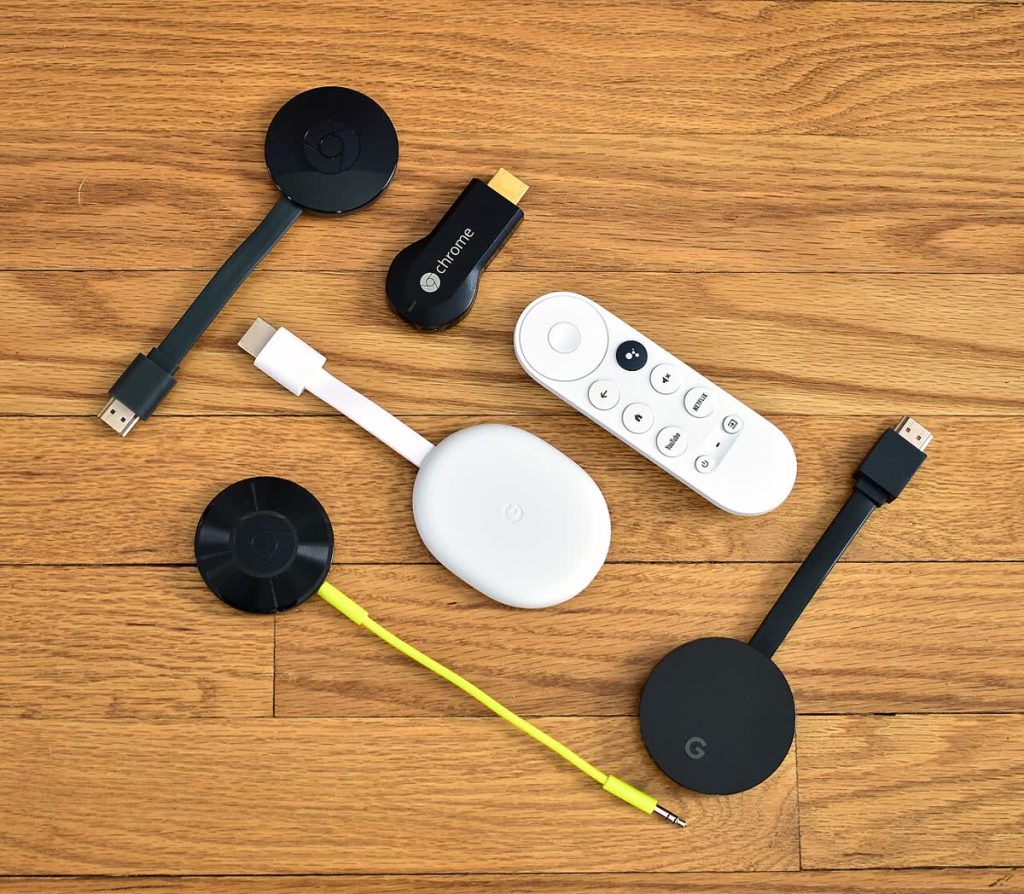
- A Chromecast, Google TV, Android TV or another compatible device connected to your TV.
- A computer and casting device on the same network.
- A video file or stream that VLC can play.
Keep VLC updated, since casting support has improved across versions and bug fixes are common.
Steps to cast with VLC to Chromecast
- Turn on your TV and make sure the Chromecast or Google TV device is powered and connected to Wi-Fi.
- Check that your computer is connected to the same network, not a guest network or a separate band that is isolated.
- Open VLC and load the video using Media, then Open File.
- Click Playback in the menu, then Renderer.
- Wait a few seconds while VLC scans. Your device should appear in the list. If not, choose Rescan.
- Select your Chromecast. VLC may show a prompt about an insecure site. Choose to accept permanently so it can connect.
- Press play. The video should now appear on the TV, while VLC acts as a remote control on your computer.
On a Mac, the menu layout is the same: Playback, then Renderer. The option appears once VLC has found a device. To stop casting and return to local playback, choose Local in the Renderer menu.
Casting with DLNA and UPnP
Many smart TVs support DLNA or UPnP, which let them pull media from a computer on your network. VLC can act as a media source in some configurations, and some TVs show up in the Renderer list too. Another approach is Windows’ own media streaming or the Cast to Device option in File Explorer. The exact steps depend on the TV brand and model.
| Method | Best for | Notes |
|---|---|---|
| VLC Renderer with Chromecast | Local video files on a computer | Same Wi-Fi network needed |
| DLNA or UPnP to a smart TV | TVs with a media player app | Support and formats vary by model |
| Chrome browser cast | Mirroring a tab or screen | More lag than direct casting |
| HDMI cable | Most reliable picture and sound | No wireless needed |
Troubleshooting when VLC does not find your TV
Check your network
Discovery depends on both devices being on the same subnet. Some routers isolate devices on different bands or guest networks. Connect both to the same network name and try again. Restart the router and the casting device if needed.
Check the firewall
A firewall on your computer can block discovery. Allow VLC through the Windows or Mac firewall and make sure the network profile is set to private rather than public.
Update and restart
Update VLC to the latest version, close and reopen it, and restart your Chromecast by unplugging it for a short time. Visit Google’s Chromecast help if the device itself has trouble connecting to Wi-Fi.
Fix stutter and audio problems
- Use a wired Ethernet connection for the computer if possible.
- Move the router or Chromecast closer, or use a 5 GHz network.
- Try a smaller or lower-bitrate version of the video.
- Check VLC’s output settings if the audio is missing.
- Close other apps that are using lots of bandwidth.
Subtitles and file formats
VLC may need to convert, or transcode, files so the Chromecast can play them. This works best with common formats such as MP4 with H.264 video. Rare formats may force heavy processing and cause lag on older computers. Subtitles can be added in the Subtitle menu, and embedded subtitles often work, but behaviour varies, so test with a short clip first.
Other ways to cast your PC to a TV
If VLC is not behaving, there are alternatives. You can cast a Chrome tab or your whole screen to a Chromecast, or connect with an HDMI cable. Our guide on how to cast from a PC to your TV with Chromecast explains these options in more detail.
Tips for the best picture and sound
- Pause large downloads or cloud backups on the computer while casting.
- Use a 5 GHz Wi-Fi network if your router offers one, as it handles video better.
- Close extra browser tabs and apps to free up processing power for transcoding.
- Set your TV to its game or movie picture mode if the image looks too bright or oversmoothed.
- Keep your computer awake by changing the power settings, otherwise it may sleep mid-film.
It also helps to test with a short video before the family sits down for a long film. That way you can confirm the connection, audio and subtitles work, and fix problems calmly rather than during the best scene.
Frequently asked questions
Why can I not see the Renderer option in VLC?
You may be using an older version or a build without renderer support. Update VLC and check that you are looking under Playback.
Can VLC cast to any smart TV?
Not all. It works best with Chromecast and some DLNA-capable devices. Others may need a manufacturer app or a different method.
Does the computer need to stay on?
Yes. VLC streams the file from your computer, so it must remain on, awake and connected to the network.
Is casting from VLC secure?
It stays on your local network, but only use a trusted home network, and accept connection prompts only for devices you recognise.
Why is the picture delayed or blurry?
This is usually a bandwidth or transcoding issue. Improve the network connection or try a simpler file format.
Conclusion
Using VLC player cast to TV is straightforward when both devices share the same network: open your video, pick the device under Playback, Renderer and press play. If problems arise, check the network, firewall and VLC version first, and keep an HDMI cable or browser casting as a backup.
Key takeaways about vlc player cast to tv
Here is a short summary of vlc player cast to tv so you can find the main points quickly.
- To use VLC player cast to TV features, open your video in VLC, choose Playback, then Renderer, and select your Chromecast or other compatible device.
- Keep VLC updated, since casting support has improved across versions and bug fixes are common.
- On a Mac, the menu layout is the same: Playback, then Renderer.
- Many smart TVs support DLNA or UPnP, which let them pull media from a computer on your network.
If you only remember one thing about vlc player cast to tv, make it the practical steps covered in this guide.
Check official sources before acting on anything related to vlc player cast to tv, because details can change over time.
Questions about vlc player cast to tv are common, so it helps to compare more than one trustworthy source.
Use this page as a starting point for vlc player cast to tv and come back to it when your situation changes.
Good decisions about vlc player cast to tv come from checking the facts, comparing your options and taking your time.
Related reading:
For general background, you can look up vlc player cast to tv on Wikipedia.