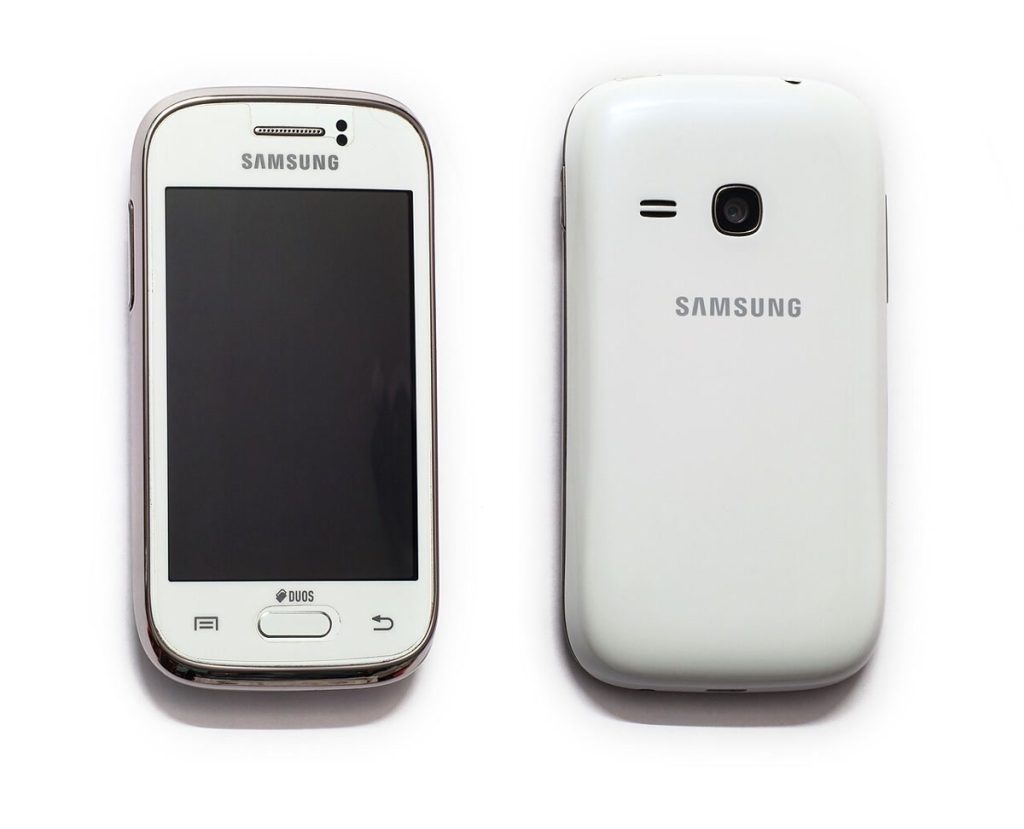
What is push messages on Samsung phones? In everyday use, push messages are notifications that an app or service sends to your phone without you opening the app. On a Galaxy device the term can also mean the Samsung Push Service, a background component that delivers alerts for Samsung apps, or the “push” and service messages that appear in the Messages app, often called WAP push.
Key takeaways
- Most push messages are ordinary app notifications, which you control in Settings under Notifications.
- Samsung Push Service is a genuine system component, not a virus, and is best left enabled.
- Push or service messages in the Messages app can be turned off, and unexpected links in them should be treated with caution.
- Turning off push messages does not stop normal calls or texts.
- Menu names vary slightly between One UI versions, so use the Settings search box if you cannot find an option.
Push messages on Samsung explained in plain English
A push message is information sent from a server to your phone, rather than your phone asking for it. The idea is described on Wikipedia’s page on push technology. A delivery app tells you the courier is close, a bank app warns about a transaction and a chat app announces a new message. Your phone shows the alert even when the app is closed.
Because “push messages” is used loosely, it helps to separate the three things people usually mean on a Samsung phone, since the settings are different for each.
| What you see | What it is | Where to control it |
|---|---|---|
| App alerts | Normal push notifications from apps | Settings, Notifications, App notifications |
| Samsung Push Service | System service that delivers messages to Samsung apps | Mostly leave alone; listed in app and battery settings |
| Push or service messages | Special text-type messages, often from a mobile operator | Messages app, Settings |
Push notifications from apps
This is the most common meaning. Most apps ask for permission to send notifications when you first open them, and you can change your mind later. The wording varies slightly between One UI versions, but the steps are similar.
- Open Settings and tap Notifications.
- Choose App notifications.
- Pick the app you want to change.
- Switch the main toggle off, or turn off individual categories such as promotions or sales alerts.
You can also long-press a notification when it appears, tap the settings (gear) icon, and choose which types you want to keep. This is the quickest way to cut a noisy app down to only the alerts that matter.
Quiet notifications and lock screen privacy
In the same Notifications menu you can choose what appears on the lock screen, hide sensitive content, or send less important alerts to a silent section. For privacy, set messages to hide content when the phone is locked.
What is Samsung Push Service?
Samsung Push Service is a system app that helps Samsung’s own apps and some partner apps receive messages in the background. It is a normal part of the phone’s software, not malware. Disabling it can stop certain Samsung features, such as some notifications or account syncing, from working properly.
If you see it in your battery or app lists, that is expected. For most people, the best approach is to leave it alone. If it appears to use a lot of battery, which is uncommon, try a restart and check for software updates in Settings, Software update. You can find general support information on the official Samsung website.
Push messages in the Messages app
In the Samsung Messages app, or in another SMS app on your phone, you may see a setting such as Push messages or Service messages. These are special messages, often called WAP push, that carry a link or an instruction, for example from a mobile operator to configure settings. They were more common in older phones, and today many operators use other methods.
Because scammers can also send misleading links, treat unexpected ones carefully.
- Do not tap links in messages you were not expecting.
- Check the sender and the web address before entering any details.
- Block or report suspicious senders through your carrier or messaging app.
- Never share passwords or one-time codes by message.
How to turn off push messages
For app alerts
Use the Settings, Notifications, App notifications route described above. You can turn alerts back on at any time.
For push or service messages in Messages
- Open the Messages app.
- Tap the three-dot menu and choose Settings.
- Look for Push messages or Service messages and switch the option off.
Menu wording differs between phone models and software versions, so use the search box in Settings or inside the Messages app if you cannot find the option.
Troubleshooting: when push messages do not arrive
If you are missing alerts you actually want, work through these checks.
- Make sure notifications are enabled for the app in Settings, Notifications.
- Check that Do Not Disturb or a Focus mode is not silencing alerts.
- Open Settings, Battery, Background usage limits and make sure the app is not set to sleep.
- Confirm you have a working internet connection.
- Restart the phone and update both the app and the phone software.
- If it still fails, clear the app’s cache or reinstall it.
Staying in control and saving battery
Notifications are useful, but too many can distract you and use extra battery. Review your settings every few months, remove apps you no longer use and turn off promotional alerts you do not need. Use Do Not Disturb to silence alerts at night, and lower screen brightness in the evening. If you wonder why a dimmer, warmer screen feels easier on the eyes, see our guide to how pupil size changes with light.
If a push message looks suspicious, for example it claims you have won a prize or asks for banking details, do not respond. Your bank or carrier will not normally ask for your password by message. When in doubt, contact the organisation through its official app or website. Keeping your software up to date also helps, because updates fix security issues.
Frequently asked questions
Is Samsung Push Service a virus?
No. It is a legitimate system component used for delivering notifications to Samsung apps.
Will turning off push messages stop my calls and texts?
No. Normal calls and texts are separate. Only push or service messages and selected app alerts are affected.
Why do I get push messages from apps I do not use?
The app may still have notifications enabled. Turn them off in Settings under Notifications, or uninstall the app.
Can I disable Samsung Push Service?
You can sometimes limit it, but it may stop some Samsung features from working. Most users should leave it enabled.
Are push messages safe?
App notifications are generally safe. Be careful with unexpected links in text-style service messages, and verify anything that asks for personal details.
Conclusion
Push messages on Samsung phones usually mean app notifications, which you can tune in Settings, plus the background Samsung Push Service and occasional service messages in the Messages app. Keep the system service on, trim the alerts you do not need, and stay cautious with unexpected links.
Key takeaways about what is push messages on samsung
Here is a short summary of what is push messages on samsung so you can find the main points quickly.
- A push message is information sent from a server to your phone, rather than your phone asking for it.
- Because "push messages" is used loosely, it helps to separate the three things people usually mean on a Samsung phone, since the settings are different for each.
- You can also long-press a notification when it appears, tap the settings (gear) icon, and choose which types you want to keep.
- In the same Notifications menu you can choose what appears on the lock screen, hide sensitive content, or send less important alerts to a silent section.
Use this page as a starting point for what is push messages on samsung and come back to it when your situation changes.
Good decisions about what is push messages on samsung come from checking the facts, comparing your options and taking your time.
Save this guide to what is push messages on samsung so you can find it again whenever you need a quick reminder.
If you only remember one thing about what is push messages on samsung, make it the practical steps covered in this guide.
Check official sources before acting on anything related to what is push messages on samsung, because details can change over time.
Questions about what is push messages on samsung are common, so it helps to compare more than one trustworthy source.
Related reading:
For general background, you can look up what is push messages on samsung on Wikipedia.