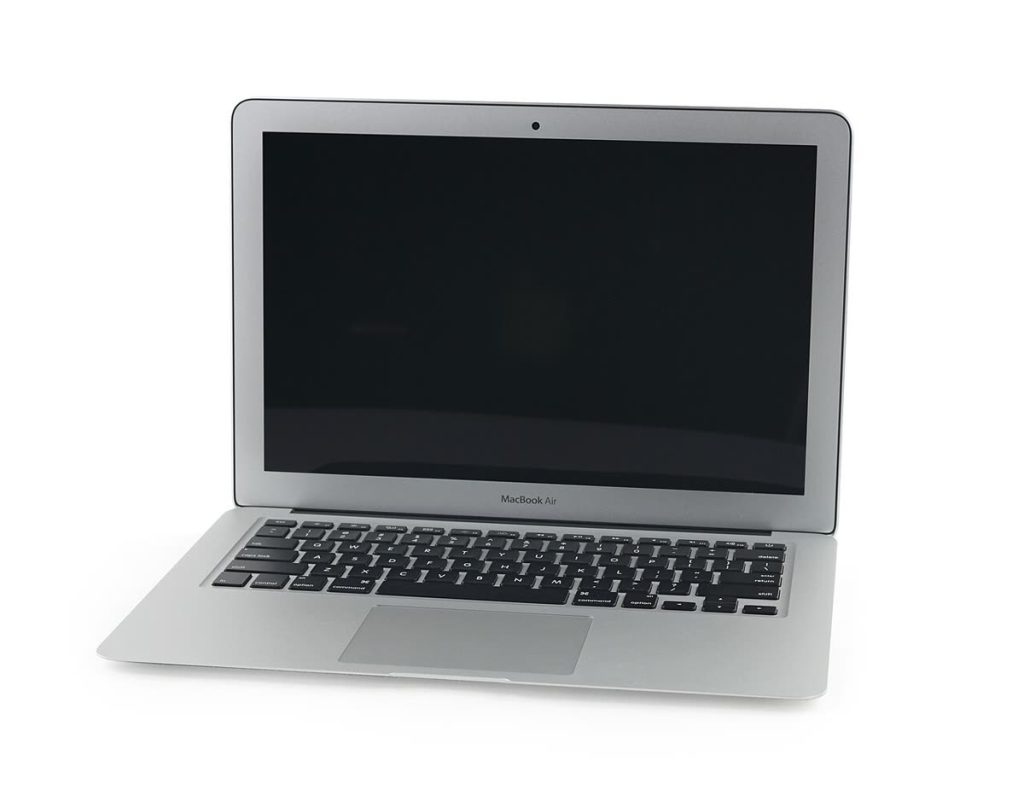
To make a MacBook cast to Roku, the easiest route is Apple AirPlay, which is built into macOS and supported by many recent Roku players and Roku TVs. Put both devices on the same Wi-Fi network, click Control Center on the Mac, choose Screen Mirroring and pick your Roku from the list. If AirPlay is not available on your model, there are workable alternatives, including a simple cable.
Key takeaways
- AirPlay is the built-in way to mirror a Mac to a compatible Roku; check Settings on the Roku for an Apple AirPlay and HomeKit menu.
- Both devices must be on the same network, and VPNs, guest networks or router isolation can block the connection.
- For video only, use the AirPlay button inside a supported player to keep the Mac free for other work.
- If your Roku does not support AirPlay, an HDMI adapter or another casting device is the dependable fallback.
Step 1: check that your Roku supports AirPlay
Not every Roku works with AirPlay. Newer players and many Roku TVs do, provided they run a recent version of Roku OS, whereas older models may not. On the Roku, press Home, go to Settings and look for Apple AirPlay and HomeKit. If it is there, your device supports the feature. If you cannot find it, update the system software by going to Settings, then System, then System update, and check again. You can also look up your exact model on Roku’s official website or its support pages.
Step 2: mirror the Mac screen with AirPlay
- Connect the MacBook and the Roku to the same Wi-Fi network.
- On the Roku, open Settings, then Apple AirPlay and HomeKit, and make sure AirPlay is switched on. Look at the “Require code” setting if you want to control who can connect.
- On the Mac, click Control Center in the menu bar (the two sliders icon, at the top right of the screen).
- Choose Screen Mirroring and select your Roku from the list.
- If a four-digit code appears on the television, type it on the Mac.
- The Mac screen should appear on the TV after a moment. To stop, click Screen Mirroring again and choose to stop mirroring.
On older macOS versions, the AirPlay icon may sit directly in the menu bar as a rectangle with a triangle. If you do not see it, open System Settings (or System Preferences), then Displays, and tick the option to show mirroring options in the menu bar when available. Apple explains the steps for each version on Apple Support.
Use the TV as a second display
In the Screen Mirroring menu, you can choose to use the TV as a separate display instead of copying the Mac’s screen. That lets you drag a video or a slide deck over to the television while keeping notes or chat windows on the laptop. It is useful for presentations and for watching something while you work.
Sending video only
Many players include an AirPlay button, a small triangle pointing up into a rectangle. Selecting it sends only the video to the Roku in full quality, and your Mac can carry on with other tasks. Apple apps support this, and Safari does it on many sites, but streaming services differ, and some block AirPlay for content-protection reasons. If the button is missing, mirroring the entire screen may work as a workaround, though protected content can appear black.
Which method suits you?
| Method | Best for | Drawback |
|---|---|---|
| AirPlay screen mirroring | Showing the whole Mac screen | Needs a compatible Roku and good Wi-Fi |
| AirPlay video from a player | Watching a video while working | App or site must support it |
| HDMI adapter and cable | Reliable, no network needed | Cable across the room, bypasses the Roku |
| Casting stick like Chromecast | Browser-based casting | Extra device and setup |
| Third-party mirroring app | Older Roku models | Check price, reviews and privacy first |
Other options if AirPlay will not work
- Apps with built-in Roku support. Some streaming apps have their own cast button and can send content to a Roku without mirroring.
- Chrome tab casting. Chrome’s casting is designed for Chromecast-compatible devices and is not a dependable way to reach every Roku, so I would not rely on it.
- Miracast. Roku can receive Miracast from some devices, but Macs do not support it natively, so you would need third-party software.
- Wired HDMI. A USB-C to HDMI adapter, or a Thunderbolt adapter depending on your model, connected to a spare TV input, is the most dependable choice. You lose the Roku interface while it is plugged in, but picture and sound are rock solid.
- Another casting device. If you want the Chrome route, our guides to casting from a PC with Chromecast and streaming VLC to a TV show how it is done.
Troubleshooting when the MacBook will not connect
- Restart the Mac and the Roku. Power-cycle the router too if the problem continues.
- Confirm both devices are on the same network, and ideally the same band. Guest networks and some mesh systems isolate devices from one another.
- Update macOS and Roku OS to the latest versions.
- Check the Roku’s AirPlay options, including the code requirement and who can connect.
- Switch off any VPN on the Mac, because VPNs can block local device discovery.
- Look at the Mac’s firewall and its Local Network permission settings in System Settings.
- If the Roku is on Ethernet and the Mac is on Wi-Fi, try putting both on Wi-Fi, since some routers separate wired and wireless clients.
Lag, blur and sound problems
If video stutters, move closer to the router, use a 5 GHz network, close bandwidth-heavy apps and lower the Mac’s display resolution. If you have a picture but no sound, check the Sound settings on the Mac and make sure the output is set to the Roku, then check that the TV is not muted. If text looks fuzzy, the Mac may be mirroring at a resolution that does not match the TV, so adjust the display settings.
Frequently asked questions
Does every Roku support AirPlay?
No. Check Settings on the Roku for an Apple AirPlay and HomeKit menu, or look up your model’s support page.
Can I cast to Roku from Chrome?
Not reliably. Chrome’s built-in casting is designed for Chromecast, so use AirPlay or a cable for a Roku.
Why does the screen mirror but without sound?
The Mac’s sound output may not be set to the Roku, or the TV volume may be muted. Check both.
Do I need the internet to mirror my Mac?
You need a local network for AirPlay, but not necessarily a working internet connection, unless the content you are showing streams from the web.
Is there a delay when mirroring?
A small delay is normal. For gaming or tight audio sync, a wired HDMI connection is better.
Conclusion
Getting a MacBook to cast to Roku usually takes under a minute once the Roku supports AirPlay and both devices share a network. If anything goes wrong, work through the checklist, and keep an HDMI cable handy as the dependable backup.
Key takeaways about macbook cast to roku
Here is a short summary of macbook cast to roku so you can find the main points quickly.
- To make a MacBook cast to Roku, the easiest route is Apple AirPlay, which is built into macOS and supported by many recent Roku players and Roku TVs.
- On older macOS versions, the AirPlay icon may sit directly in the menu bar as a rectangle with a triangle.
- In the Screen Mirroring menu, you can choose to use the TV as a separate display instead of copying the Mac's screen.
- Many players include an AirPlay button, a small triangle pointing up into a rectangle.
Good decisions about macbook cast to roku come from checking the facts, comparing your options and taking your time.
Save this guide to macbook cast to roku so you can find it again whenever you need a quick reminder.
If you only remember one thing about macbook cast to roku, make it the practical steps covered in this guide.
Check official sources before acting on anything related to macbook cast to roku, because details can change over time.
Questions about macbook cast to roku are common, so it helps to compare more than one trustworthy source.
Use this page as a starting point for macbook cast to roku and come back to it when your situation changes.
Related reading:
- What Does PF Chang Stand For? The Meaning Behind the Name
- What Is the Rind of Brie Made Of? Is It Safe to Eat?
For general background, you can look up macbook cast to roku on Wikipedia.